The sidebar sections
Around your coding agents, you need more: the files of the project, the Git changes, the issues, the commands of the project, and the pieces of text that you want to keep. Without Heidrun Code, each one is in a different application.
What Heidrun Code does
The left sidebar and the right sidebar each hold several sidebar sections. The sidebar icon bar, at the outer edge of each sidebar, shows one icon for each sidebar section. Click an icon to show its sidebar section.
File explorer sidebar section
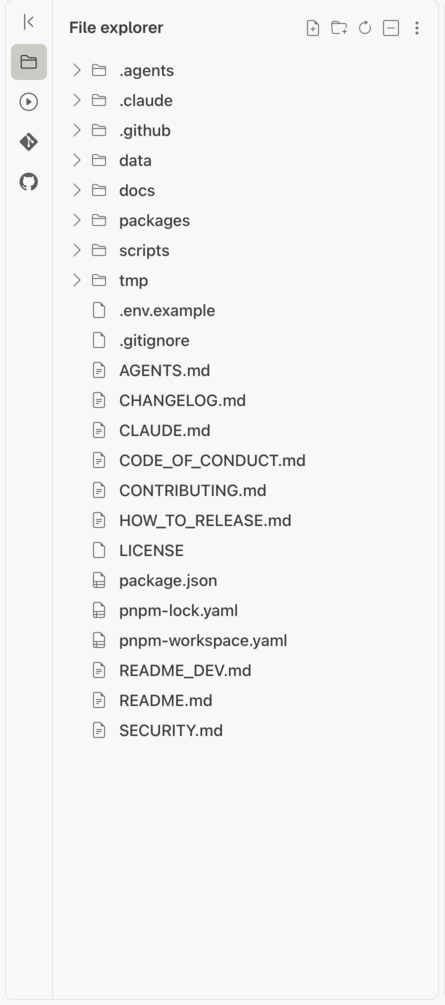
The File explorer sidebar section, in the left sidebar, shows the whole folder tree of the Git repository of the selected workspace.
- Click a folder to fold it or to unfold it.
- Click a file to open it in a pane next to your terminal. Type in the pane to change the file, and press ⌘S to save it.
- Select lines in that pane, then click "Explain" or "Fix these lines": the prompt goes to the coding agent of the same tab.
- The option "Ignored files" of its menu shows or hides the files that Git ignores.
- Press ⌘P to find a file of the project by a part of its name.
Search in files sidebar section
The Search in files sidebar section, in the left sidebar, searches a text in all the files of the Git repository of the selected workspace.
- Type the text, and choose "Match case" or "Regular expression" if you need them.
- The results are grouped by file. Click a line to open the file at that line, in a pane next to your terminal.
Source control sidebar section
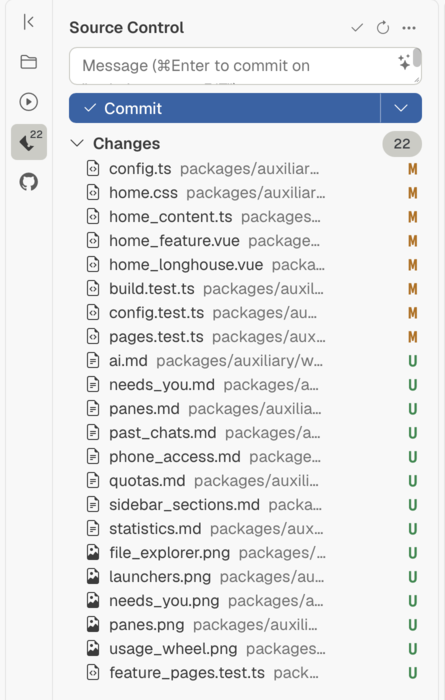
The Source control sidebar section, in the left sidebar, shows the Git changes of the selected workspace, as the source control view of Visual Studio Code does.
- Stage the files, write the commit message, and press ⌘Enter to commit.
- The menu of the commit button also gives "Commit and push", and "Commit (amend the last commit)".
- The sparkle button asks a coding agent to write the commit message from the diff. See The use of AI.
- A click on a changed file shows its diff in a pane next to your terminal, read only, as a diff or side by side.
Code hosting sidebar section
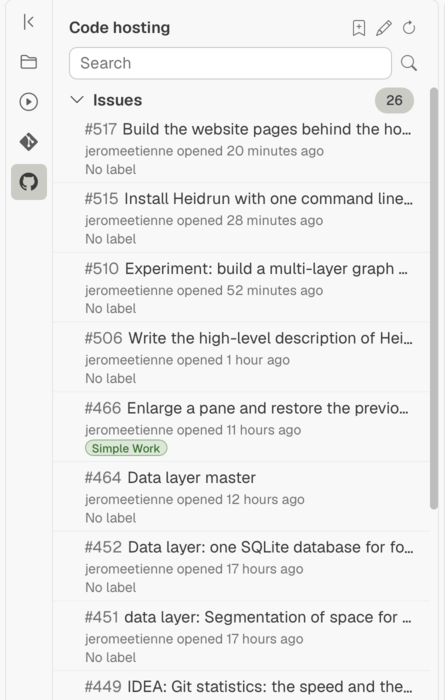
The Code hosting sidebar section, in the left sidebar, shows the open issues and the open pull requests of GitHub, or the merge requests of GitLab, for the repository of the selected workspace.
- Click a row to read more about the issue or the pull request in an information card.
- Type in the search field to find an item, and save a search that you use often.
Launchers sidebar section
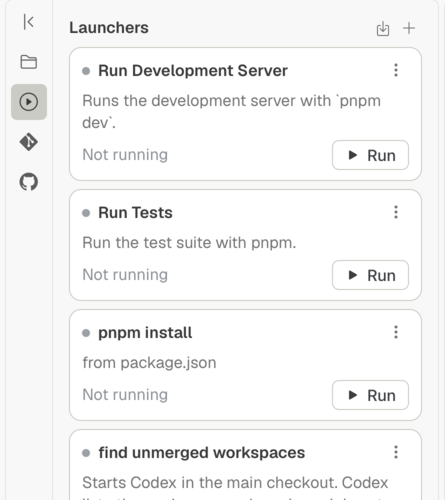
The Launchers sidebar section, in the left sidebar, lists the launchers of the selected workspace. A launcher is a name, a command line, and an optional folder.
- Click "Run" to run the command line of a launcher in its own tab.
- Import launchers from the scripts of the file
package.jsonin one click. - Create a custom launcher that runs a command line, or a coding agent with a prompt.
A launcher has one of two levels. Choose the level when you create a custom launcher, and change it later when you edit the custom launcher.
- A launcher of the workspace level shows only in its workspace. Heidrun Code saves it in the file
.heidrun/config.jsonof the repository, so your team shares it. - A launcher of the user level shows in every workspace. Heidrun Code saves it in the file
launchers.jsonin its data folder on your computer, so it is not shared. Its folder, when it has one, is read from the root of each workspace.
Clipboard sidebar section
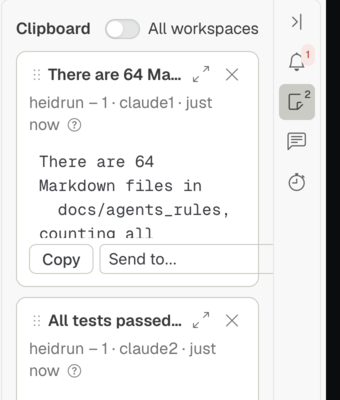
The Clipboard sidebar section, in the right sidebar, lists the notes that you pinned from the text of a terminal. Find a command, an error, or an answer again later. The switch "All workspaces" shows the notes of every workspace.
A Viking keeps the axe, the shield, and the horn of mead within reach. You keep your files, your branches, and your issues within reach.