The phone access
A coding agent can wait for an hour only for one permission, while you are away from your desk.
What Heidrun Code does
Heidrun Code serves a small web page from your computer. From your phone, you can:
- See the coding agents and their state, and find the ones that wait for a decision.
- Allow or refuse the request of a blocked coding agent. The same guards as on your computer apply to a dangerous command.
- Send a prompt to a coding agent, or interrupt a coding agent.
- Read the end of the output of a coding agent.
Safe by design
- Heidrun Code serves the page only on the loopback address of your computer, so no other device on your network reaches it. An ngrok tunnel gives the page a public HTTPS address, and the page answers only to the address of the tunnel.
- The tunnel puts the page on the Internet, so the pairing key is the protection. Each request needs it, and ten wrong keys in a row lock the wrong keys for one minute. Each phone pairs once, with a QR code.
- ngrok ends the encryption on its own servers, so ngrok can read the traffic of the tunnel, including the pairing key.
- The address of the tunnel is fixed for your free ngrok account: it is the same each time that the tunnel opens, so each phone scans the QR code only once.
- The first time that a phone opens the address, ngrok shows a warning page of its free plan. That page also shows the public network address of your computer. Tap the button "Visit Site".
- The QR code holds the pairing key. Do not show the QR code, and do not share it.
- The button "Revoke the paired devices" makes every paired device scan the QR code again.
- The tunnel opens when you turn the mobile access on, and closes when you turn it off or quit Heidrun Code.
Set up the phone access
- Install the program
ngrokon your computer. With Homebrew, runbrew install ngrok. - Create a free account at ngrok.com, then run the command that its dashboard shows:
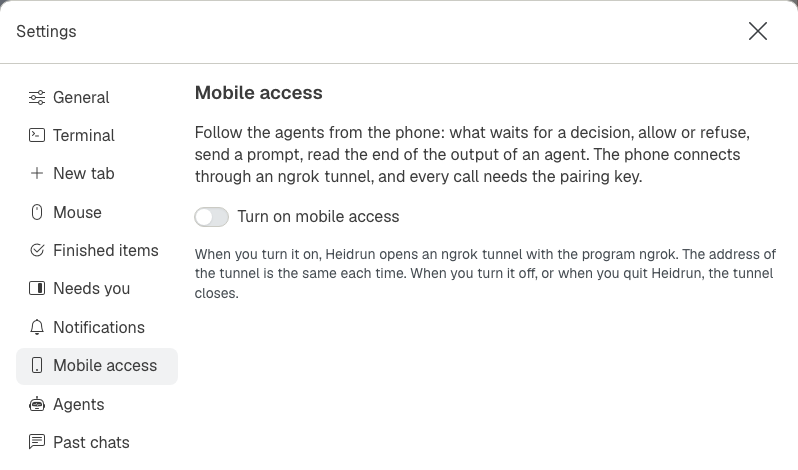
ngrok config add-authtoken <your token>. - In Heidrun Code, open the section "Mobile access" of the Settings window, and click "Turn on mobile access". Heidrun Code opens the tunnel by itself. This takes a few seconds.
- Scan the QR code with the camera of the phone. The first time, tap the button "Visit Site". The phone opens the page and is paired.
To use the page in the web browser of your computer, click the address under the QR code in the Settings window. The page opens already paired.
Even Odin leaves Valhalla sometimes. Now the einherjar can still reach him.