Work with workspaces, tabs, and panes
Use workspaces to keep projects apart, tabs to group layouts, and panes to view terminals or files.
Open and organize a workspace
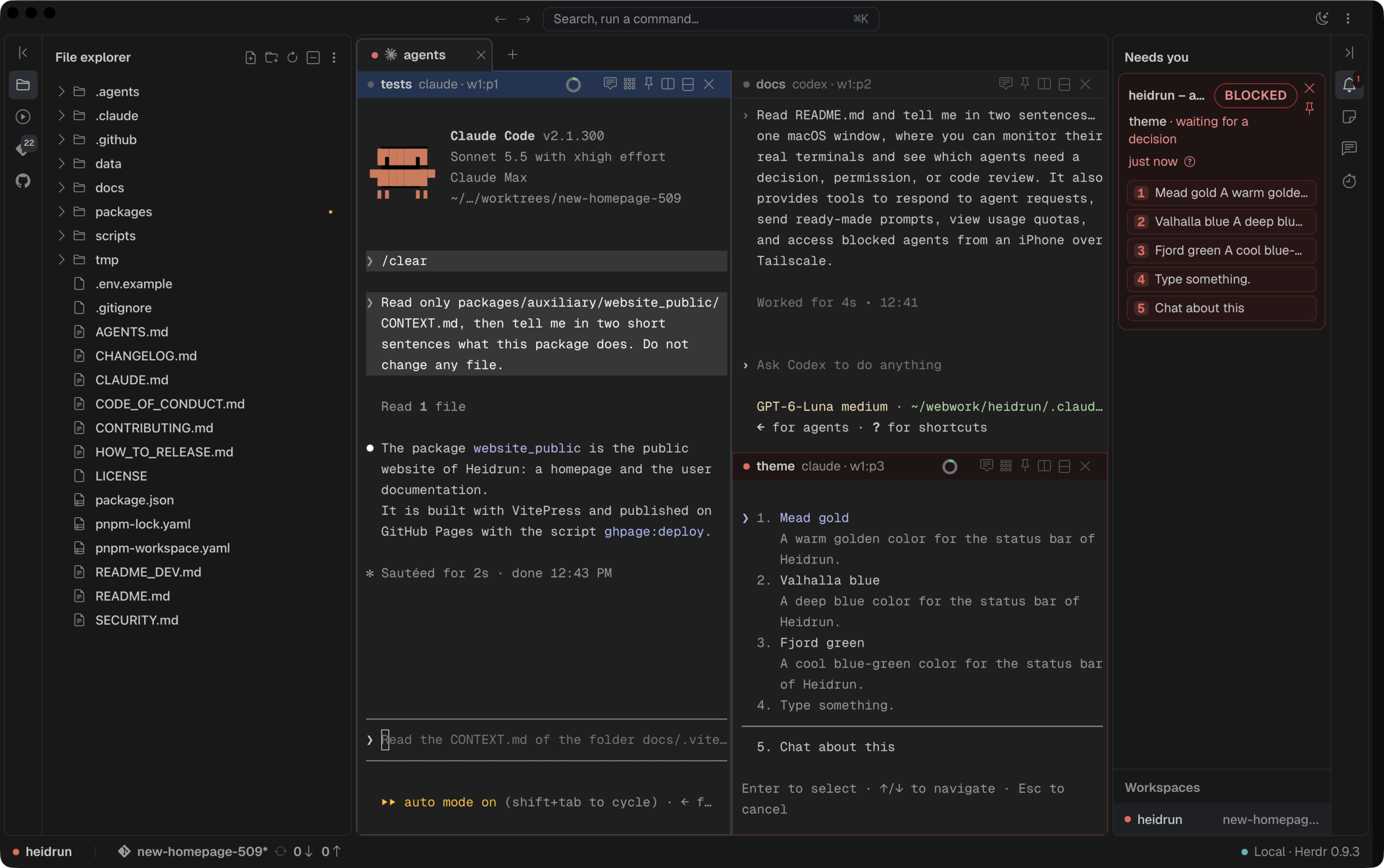
A workspace represents a project folder. Select a workspace from the workspace bar, or use the workspace controls to open a folder; the selected workspace and its tabs appear in the main window.
Use tabs and panes
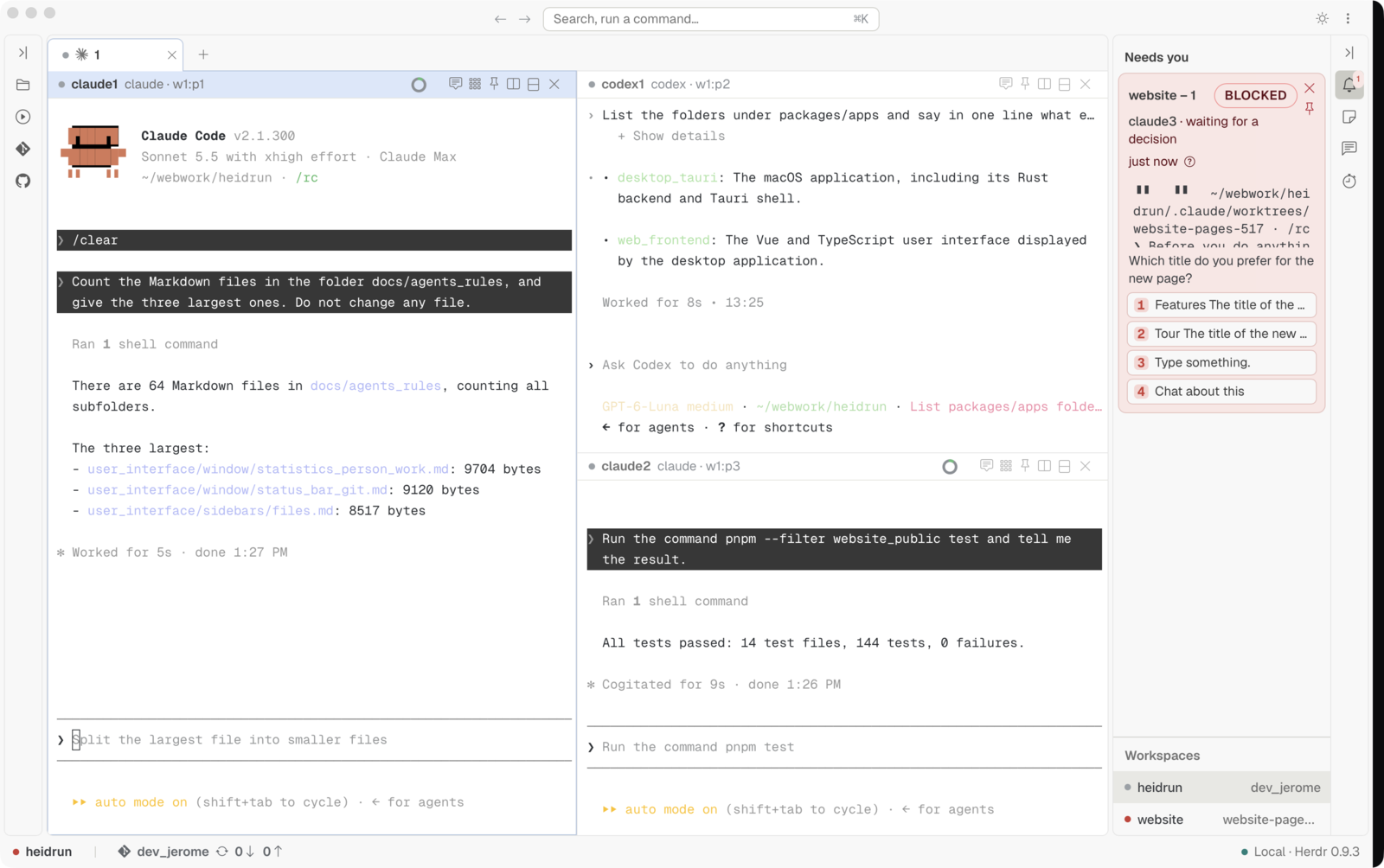
A tab holds a layout of panes. Select a tab to restore its layout, then use the pane header controls to focus or arrange panes. Zen Mode hides the top bar while keeping the workspace content available.
Move between panes
Drag a pane by its header and drop it on the indicated side of another pane to place the pane there. The preview shows the destination before release; drop on the tab bar plus control to move the pane into a new tab.
Related pages
- Move between panes you have used: return to recently focused panes.
- The panes: understand terminal, file, and diff panes.