The Past chats sidebar section
Claude Code and Codex save each chat in a file on your computer. After a few weeks, you have hundreds of chats, and you cannot find the chat where you fixed that bug.
What Heidrun Code does
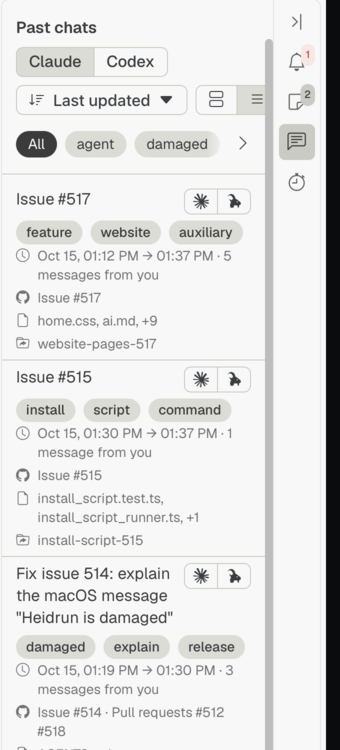
The Past chats sidebar section, in the right sidebar, lists the chats of the selected workspace: the chats of the coding agents that ran in the folder of the workspace. A selector at the top chooses the coding agent: Claude Code or Codex.
Under the title of each chat, a summary of up to four lines shows:
- The first date and the last date of the chat, and the number of messages that you typed.
- The issues and the pull requests that the chat mentions.
- The files that the coding agent wrote.
- The worktrees where the coding agent worked.
Click a line of the summary to see more in an information card. The information card of the dates also gives the tokens of the chat and its estimated cost: what the tokens would cost at the public price of the model. On a subscription, you pay something else.
Open an old chat again
Each row has two buttons:
- Open the chat in the desktop application of Claude or of Codex.
- Open the chat in a new tab of Heidrun Code: Heidrun Code types the command that resumes the chat in the terminal.
Sort the chats
The Chats sort dropdown menu sorts the chats by the date of creation, the date of the last update, the number of messages that you typed, the issues, the pull requests, or the files written, in the ascending or the descending order.
The dynamic topics
Each chat gets up to three dynamic topics: short labels such as "sidebar" or "release". The dynamic topic bar, at the top of the Past chats sidebar section, lists the dynamic topics of the chats. Click a dynamic topic to show only the chats that have it, and click "All" to show every chat again.
The section "Dynamic topics" of the Settings window chooses how Heidrun Code finds the dynamic topics:
- "Keyword", the default: Heidrun Code finds the most important words of each chat on your computer, with no language model.
- "Language model": a coding agent that is installed on your computer finds the dynamic topics.
The option "Enable clustered dynamic topics" puts the dynamic topics with a close meaning together, so that one subject has one label. The option "Enable dynamic topics" switches the dynamic topics off. What each option sends to a coding agent is on the page The use of AI.
The skalds remember every battle of the einherjar. Heidrun Code remembers every chat of your coding agents.